Without an account, your projects and palettes are saved in this browser, on this device. Browsers sometimes clear what sites have saved, especially on phones and in private windows. Here's how to keep a copy, and how to move a project to another device.
The Easy Way: Sign In
An account is free. Signed in, everything you save is also kept in your account, and on every device where you sign in.
- Press Sign In at the top of the page, and continue with Google.
- Projects saved before you signed in stay in this browser. Open each one, press Project, then Add to Account.
- On your other device, open the site and sign in. Your projects are in My Library.
The icon on Project shows a cloud when a project is saved to your account, and a screen when it's only in this browser.
Keep a Link of Each Project
A project's link holds everything about it: its places and dates, colors, ranges and preview. Keep it, and you can open the project again anywhere.
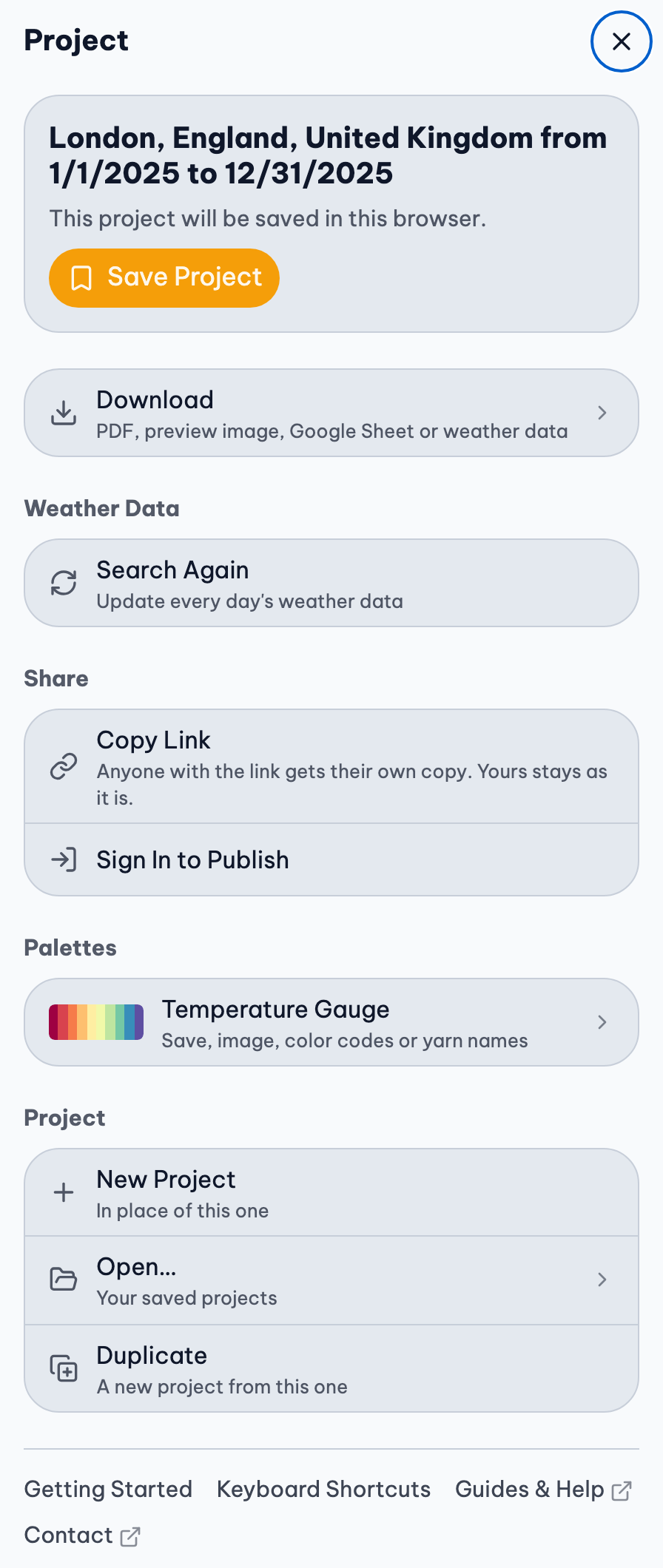
- Open the project, press Project, then Copy Link.
- Paste it somewhere safe: an email to yourself, a note, or a document of all your projects.
- Copy it again after big changes: a link is the project as it was when you copied it.
Palettes work the same way: in the Yarn Palette Creator, press Palette, then Copy Link.
If you edited or imported weather
A link doesn't hold weather: it's looked up again when the link is opened. Keep your weather too: press Download at the top of the Weather step, then Download CSV. To restore it, open the link, then press Edit, then Import File, choose the file, and press Apply.
Move a Project to Another Device
- Copy its link, and send it to yourself (by email or a message).
- Open the link on the other device.
- Press Search for the weather, then Project, Save Project.
The project on each device is now separate: changes on one don't show on the other, unless you're signed in on both.
A Copy of Your Account
On the Account page, Download my data saves your account, synced projects and gallery pages as a file. It's a record of what's kept about you, not a backup to load again: the site can't open it. Your account already keeps your synced projects safe.
Get Back a Deleted Project
Move to Trash keeps a project for 30 days. In My Library, press Trash, then Restore. After that, or after Delete Forever, it's gone, except from links you've kept.
If Something Goes Wrong
My projects are gone
- Are you in the same browser as before? Projects saved in Safari aren't in Chrome, and ones saved on your phone aren't on your computer.
- A private or incognito window forgets everything when it's closed.
- Clearing your browser's history or site data clears saved projects too.
- Check the Trash.
- Signed in? Sign in again: what you'd synced comes back.
Open the links you've kept, and save them again.
There's a project called "(copy from this device…)"
The same project was changed on two devices at once. Nothing is lost: the changes that couldn't be saved became a copy. Keep the one you want, and move the other to the Trash.
More Detail
- My Library & Account: Saving, opening and syncing projects and palettes, the Trash, Preferences and your account.
- Download: The PDF, the weather spreadsheet (CSV), and the preview image.
- Weather: Where the weather comes from, and how to view, group, edit and import it.