Everything you make is kept in My Library. Without an account, it's saved in this browser on this device.Signed in, it's also saved to your account, and on every device where you sign in.
Save a Project
A dot on Project, at the top of the Project Planner, means the project isn't saved yet. Press Project, then Save Project (or ⌘ Cmd/Ctrl + s). It needs a place, dates and weather first. From then on, changes save automatically, and the icon on Project shows where it's saved:
- a screen: Saved in this browser, on this device only.
- a cloud: Saved to your account, and synced to your devices.
To name it, press the pencil beside its name above the Project Planner. A project without a name is called by its place and dates.
Browsers can clear what sites have saved, especially on phones and in private windows.Signing in keeps a copy in your account. Keeping your projects safe.
The Project Menu
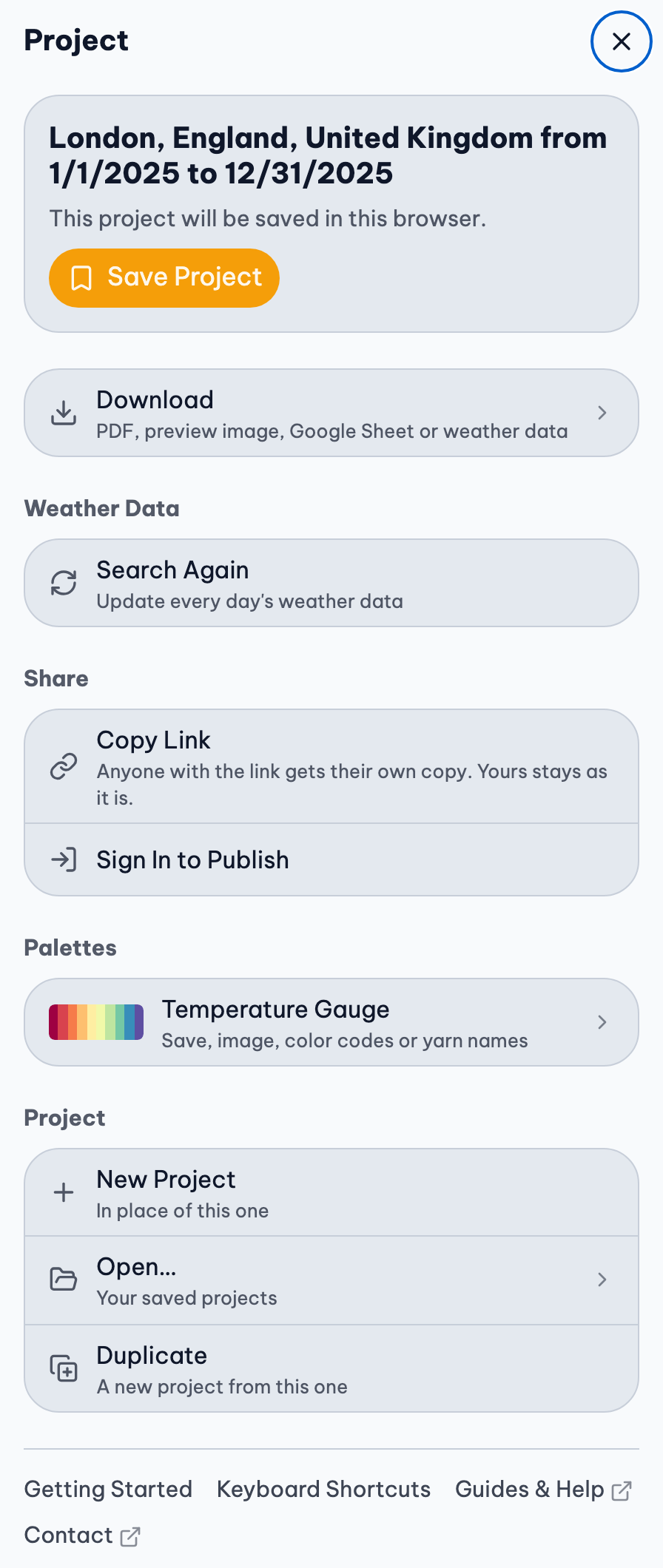
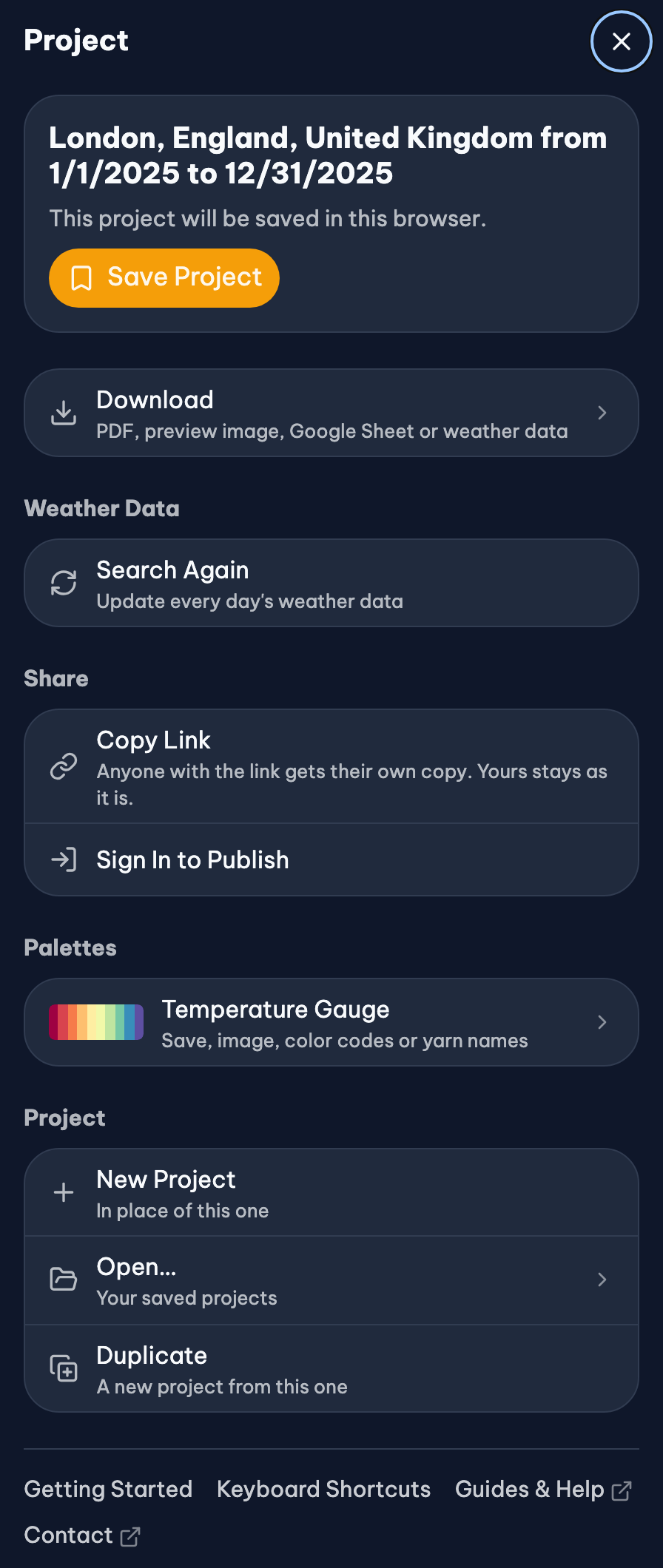
Press Project at the top of the Project Planner (or .):
- Download: the PDF, preview image, Google Sheet or weather data. Download.
- Share: Copy Link, and the project's gallery page. Gallery & Ravelry.
- Palettes: each gauge's colors, to save to My Palettes, download or copy.
- Project: New Project, Open…, Duplicate (a copy, leaving this one as it is) and Move to Trash.
- Getting Started, Keyboard Shortcuts, Guides & Help and Contact.
Starting a new project or opening another asks first if this one has unsaved changes.
My Library
Open My Library in the site menu. It has two sides, Projects and Yarn Palettes, each a list of cards.
- Press a card to open it.
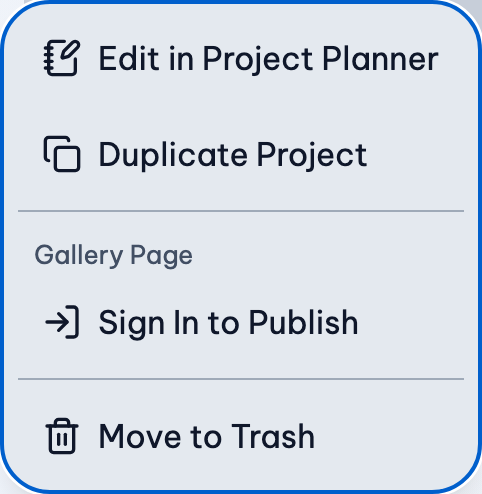
- Its ⋮ menu has Edit in Project Planner, Duplicate, sharing, and Move to Trash. The pencil renames it.
- Search, sort (Recent or Name), switch the view, and filter by yarn, whether it's published, or (for projects) pattern.
To open a project without leaving the Project Planner, press Project, then Open… (or ⌘ Cmd/Ctrl + o), and search for it.
A project's link opens it anywhere, too: paste it into your browser's address bar. A link is a copy. Changes made from it don't change yours, and the weather is looked up again (edited weather isn't included).
Starred
Signed in, switch Mine to Starred above the list to see the gallery pages you've starred, sorted by Recently starred, Newest published or Most viewed. About stars.
Trash
Move to Trash doesn't delete right away. Press Trash in My Library to see what's there for 30 days: Restore it, or Delete Forever. Empty Trash deletes everything in it.
A project or palette with a gallery page takes its page with it: the page is hidden while it's in the Trash, comes back when you restore it, and is removed for good when it's deleted forever.
Undo and Redo
Undo any change to a project, or to a palette in the Yarn Palette Creator, with Undo and Redo at the top of the page.
Keyboard Shortcuts
Shortcuts don't work while you're typing in a box. Press k to see them in the Project Planner.
General
| Shortcut | Description |
|---|---|
| . | Open Project Menu |
| Cmd ⌘ + oor Ctrl + o | Open a Project |
| Escape | Close any open modal |
| t | Toggle Theme (Light, Dark, System) |
| u | Change Units |
| k | Open Keyboard Shortcuts |
Project
These shortcuts won't work until the project has weather data.
| Shortcut | Description |
|---|---|
| Cmd ⌘ + sor Ctrl + s | Save Project |
| Cmd ⌘ + zor Ctrl + z | Undo |
| Cmd ⌘ + Shift ⇧ + zor Ctrl + Shift ⇧ + z | Redo |
Navigation
These shortcuts won't work until the project has weather data.
| Shortcut | Description |
|---|---|
| 0 | Go to the top of the page |
| 1 | Go to Location section |
| 2 | Go to Weather section |
| 3 | Go to Colors section |
| 4 | Go to Preview section |
Preferences
Open Preferences from the sidebar, or from the Account button at the top of the page when you're signed in. They apply to the whole site, and follow you to your other devices when you're signed in.
- Appearance: Mode (Light, Dark or System), Colors, Headings, Text Size, Spacing and Border Radius.
- Default Yarn: the yarn chosen first, for example when colors don't have a yarn yet.
- Reduce Motion: fewer animations.
- Reset to Defaults puts everything back.
Light and dark
Choose Mode in Preferences, or press t to go from Light to Dark to System. System follows your device's setting.
Units
Use Units above the weather in the Project Planner, or press u, to switch between metric (°C / mm) and imperial (°F / in).
Your Account
An account is free and optional. Press Sign In at the top of the page and continue with Google. There's no password.
Syncing
- Projects, palettes and preferences saved while you're signed in sync to your other devices. Open the site there and sign in.
- Projects saved in this browser before you signed in stay here. To add one to your account, open it, press Project, then Add to Account.
- Nothing is lost when two devices change the same project: the one that couldn't be saved becomes a copy, "(copy from this device…)". If a project changed in another tab or on another device, the Project menu says so and offers Duplicate or Reload the Latest.
The Account page
Open it from the Account button at the top of the page. It has:
- Profile: your display name, shown only on gallery pages where you choose to show it.
- Sign-in methods and Connected accounts (Ravelry).
- Devices and data: sign out here or everywhere, and Download my data (your account, synced projects and gallery pages, as a file).
Deleting your account
Delete account, at the bottom of the Account page, deletes it for good and signs you out everywhere. Choose whether your gallery pages stay (without your name) or are removed. Projects saved in this browser stay in this browser.
What's kept and why: the Privacy Policy.
Related Guides
- Move or Back Up Your Projects: Keep your projects safe and open them on another phone, tablet or computer.
- Crochet or Knit Along All Year: A blanket for this year, one row a day: keep the same project as the weather comes in.
- Publish and Share a Gallery Page: Share a project or palette with a link, or publish it to the gallery and keep it up to date.