Take your project with you: a PDF to print, the weather as a spreadsheet, or a picture of the preview. Press Project at the top of the Project Planner, then Download, and choose one. The same downloads are under the weather table and the preview.
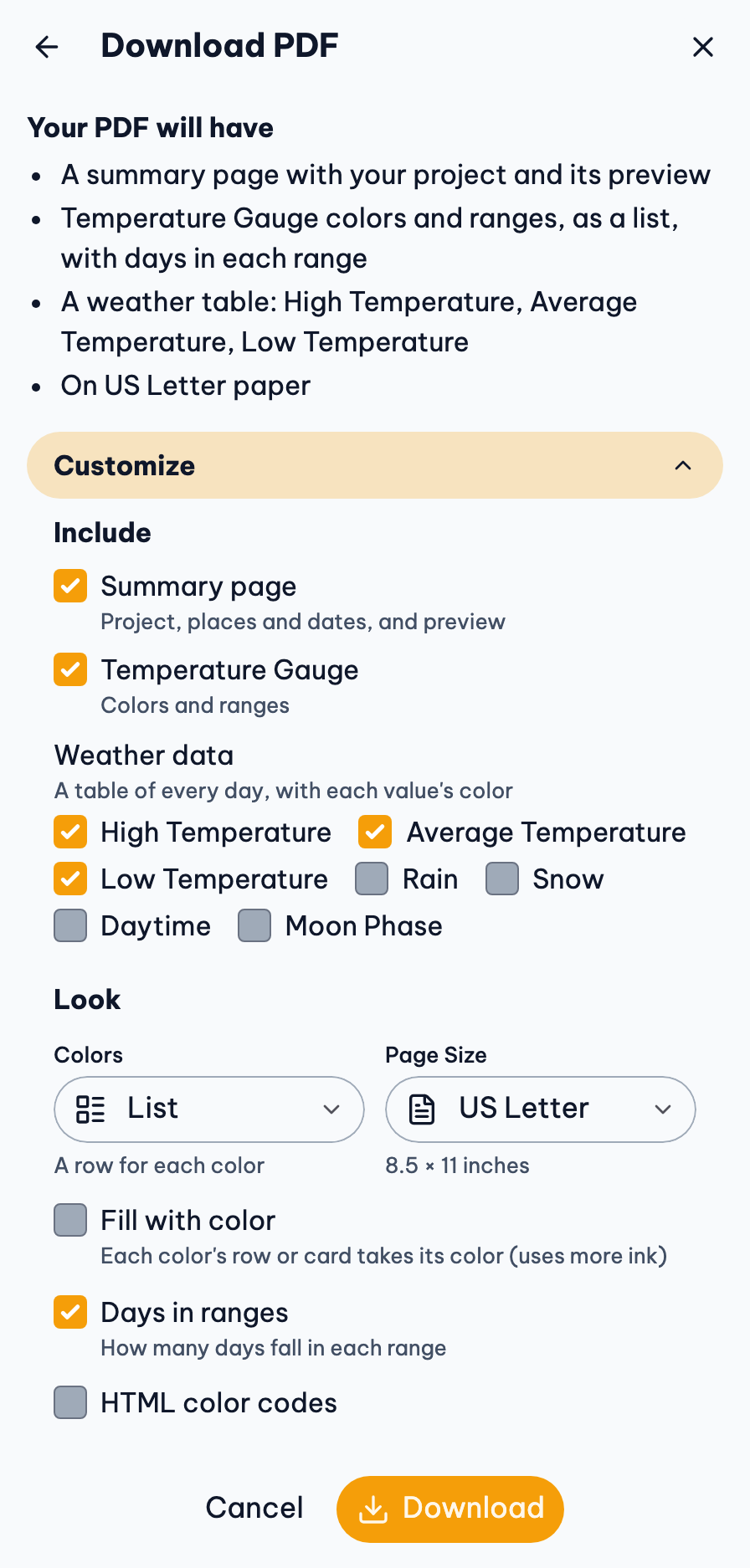
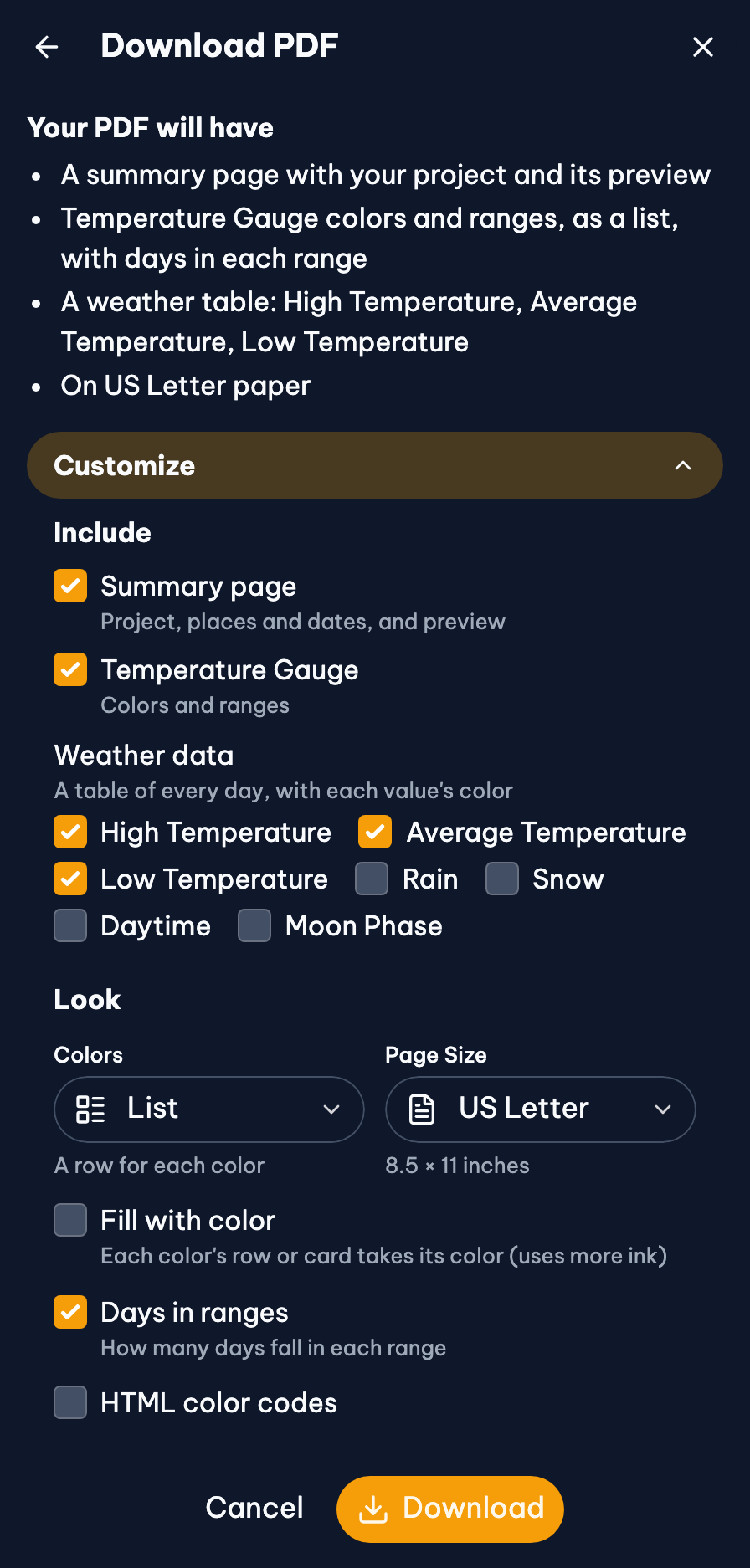
Your pattern, ready to print. Its pages show on the left, and change as you choose what goes in it under Include:
- Summary page: your project, its place and dates, and the preview.
- Colors and ranges of each gauge, and the preview's Additional colors (border and accent).
- Weather data: a table of every day, with each value in the color of its range. Choose which weather to list: high, average and low temperatures to start with.
And how it looks, under Look:
- Colors: a List (a row for each color) or a Grid (a card for each), with Fill with color, Space between colors, Days in ranges and HTML color codes if you want them.
- Page Size: US Letter or A4.
Press Download. Your choices are remembered for next time.
Weather Data (CSV)
Every day's weather as a spreadsheet file, for Excel, Numbers or Google Sheets. It's also how you edit many days and import them back. With weekly weather, it has a row for each week.
Google Sheet
The weather and your gauges' colors and ranges, in a new spreadsheet in your Google Drive. Choose the weather and gauges to include, and whether to show the number of days in each range. Google asks you to sign in; if nothing appears, allow pop-ups for this site.
Preview Image (PNG)
A picture of the preview, to share or to keep beside you as you work. It's also Download Image in the preview's Share menu.
Palettes
To download or copy a gauge's colors on their own, see Copy, Export and Paste Colors.
Related Guides
- Print the Pattern and Track Your Progress: Download the pattern as a PDF or spreadsheet, and keep your place as you work.
- Move or Back Up Your Projects: Keep your projects safe and open them on another phone, tablet or computer.