A gauge's colors can be any colors, or real yarn colorways. Press Get Colors above a gauge to fill it all at once, or press one color to change just that one.
Get Colors
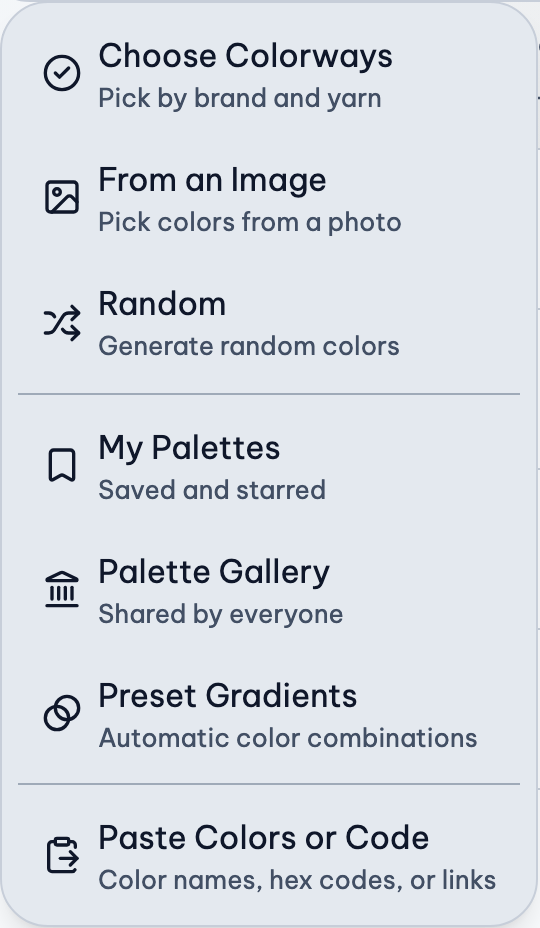
The Get Colors menu has:
- My Palettes: palettes you've saved, and ones you've starred in the gallery.
- Palette Gallery: palettes shared by everyone, with the gallery's search, filters and sorting.
- Preset Gradients: smooth color combinations in any number of colors, like One Hue: Blue or Multi-hue: Yellow to Green.
- Choose Colorways: pick real yarn, by brand and yarn.
- From an Image: pick colors from a photo.
- Random: random colors. Press Randomize (or r) until you like them.
- Paste Colors or Code: type or paste colors.
Choosing a palette replaces the gauge's colors (in the Yarn Palette Creator, the colors of the palette you're making; it doesn't open the palette you chose). Undo puts them back.
Choose Yarn
- Press Get Colors, then Choose Colorways.
- Choose a brand and yarn. To find a colorway, search by its name or by a color.
- Press colorways to add them to your palette, in order. Rearrange or remove them in the strip at the bottom, or press Clear to start over.
- Press Save.
To change one color, press its swatch in the gauge. Type a color (a name like "sage" or a hex code like #9CAF88), pick it from a photo, or choose a yarn colorway below; then Save.
If you keep choosing the same yarn, you'll be asked whether to make it your default yarn, so it's chosen for you next time. Change it any time in Preferences.
Colors From a Photo
- Press Get Colors, then From an Image.
- Choose Your Photo (or drop or paste one), or a Random Photo. Your photo stays on your device: it's never uploaded.
- Tap the photo to add colors (Pick Colors), or Draw a Line across it to take the colors along it. Auto picks the colors that best capture the photo.
- To use yarn, choose one under Yarn: each color is matched to its closest colorway.
- Press Save.
Continue with your last photo picks up where you left off. Matching your yarn or a photo.
Sort Colors
Drag a color by its handle to move it. Or use Sort above the gauge to put them all in order:
- Gradient: A smooth blend, warm to cool.
- Hue: Rainbow order, grays last.
- Lightness: Light to dark.
- Name: A to Z.
- Reverse: the same order, last to first.
- Shuffle: a random order.
Name only shows when every color has a name.
Saved Palettes
Keep a gauge's colors to use in other projects. In the Project Planner, press Project, then your gauge under Palettes, then Save to My Palettes. Name it, or leave the name empty to use its yarn and number of colors.
Saved palettes are in My Library, under Yarn Palettes, and on every device where you're signed in. Open one in the Yarn Palette Creator to change, share or publish it. To use it in a project, press Get Colors, then My Palettes.
Copy, Export and Paste Colors
To take colors out: press Project, then your gauge under Palettes, then:
- Image: download a PNG of the palette.
- Color Codes: copy hex codes, for other apps.
- Yarn Colorway Names: copy the yarn names, for a shopping list.
To bring colors in: press Get Colors, then Paste Colors or Code. Type or paste them, separated by commas or new lines:
- color names: red, orange, light blue
- hex codes: #FF0000 #FFA500, or FF0000-FFA500
- rgb() colors: rgb(255, 0, 0)
- a palette link, project link or yarn search link from this site, or a palette link from Coolors.co
- a palette code from older versions of this site
Anything that can't be read is listed, and the rest is kept. Press Use Colors when you're done.
About the Yarn Colors
Yarn on a screen never looks quite like yarn in your hands. Screens differ, and each colorway is one average color of what is often a mix. Check the real yarn before you buy a lot of it.
Links with a shopping cart go to where the yarn is sold. Buying through some of them supports this site at no extra cost to you. Yarn names and colorways belong to their companies.
Is a yarn missing? Ask for it to be added.
How yarn colors are made
- A photo of the colorway is found, usually from the yarn company.
- A clear part of the photo is chosen, showing as much of the colorway's variation as possible.
- That part is averaged into one color.
- The color, the colorway's name and a link to its page are saved, for the site to show.
Link Unavailable
Link Unavailable means the yarn's own web page, where its colors came from, can't be found anymore. The yarn may have been discontinued or renamed, or its website may have changed.
Its colors are still here, so projects that use it keep working. For a new project, you may want a yarn you can still buy.
Each yarn's source and the day its colors were found are in Yarn Sources.
Related Guides
- Match Your Own Yarn, or a Photo: Use yarn you already have or can buy, or take the colors from a photo you love.
- Choose Ranges for Your Yarn: How ranges work, why the numbers repeat, and how to make them fit the colors you have.
- Plan a Blanket, Start to Finish: Every step of a temperature blanket project, from choosing a place to printing the pattern.