This guide goes through one whole project: a place and dates, the weather, your colors and ranges, a preview, then saving and printing the pattern. Each step links to the full details if you want them.
What You Need
- A project you'll finish. A year of rows is a big commitment, so a scarf, shawl or socks, or a shorter stretch of days, are good choices too. The planner works the same for any of them.
- The place your blanket is about, like your town, and its dates: a year, a trip, or any stretch up to 370 days.
- Yarn in mind, or not yet: you can choose colors first and match them to yarn later.
- Nothing else. You don't need an account, though signing in keeps your project on every device.
1. Choose a Place and Dates
- Open the Project Planner: Create, then Project, in the site menu.
- Type your place in the search box, and choose it from the list.
- Choose a Duration: One Year (then the year, month and day it starts) or Custom (any From and To dates).
Making a blanket for this year, as it happens? Choose the whole year anyway: the days still to come are filled in later. Crocheting or knitting along all year.
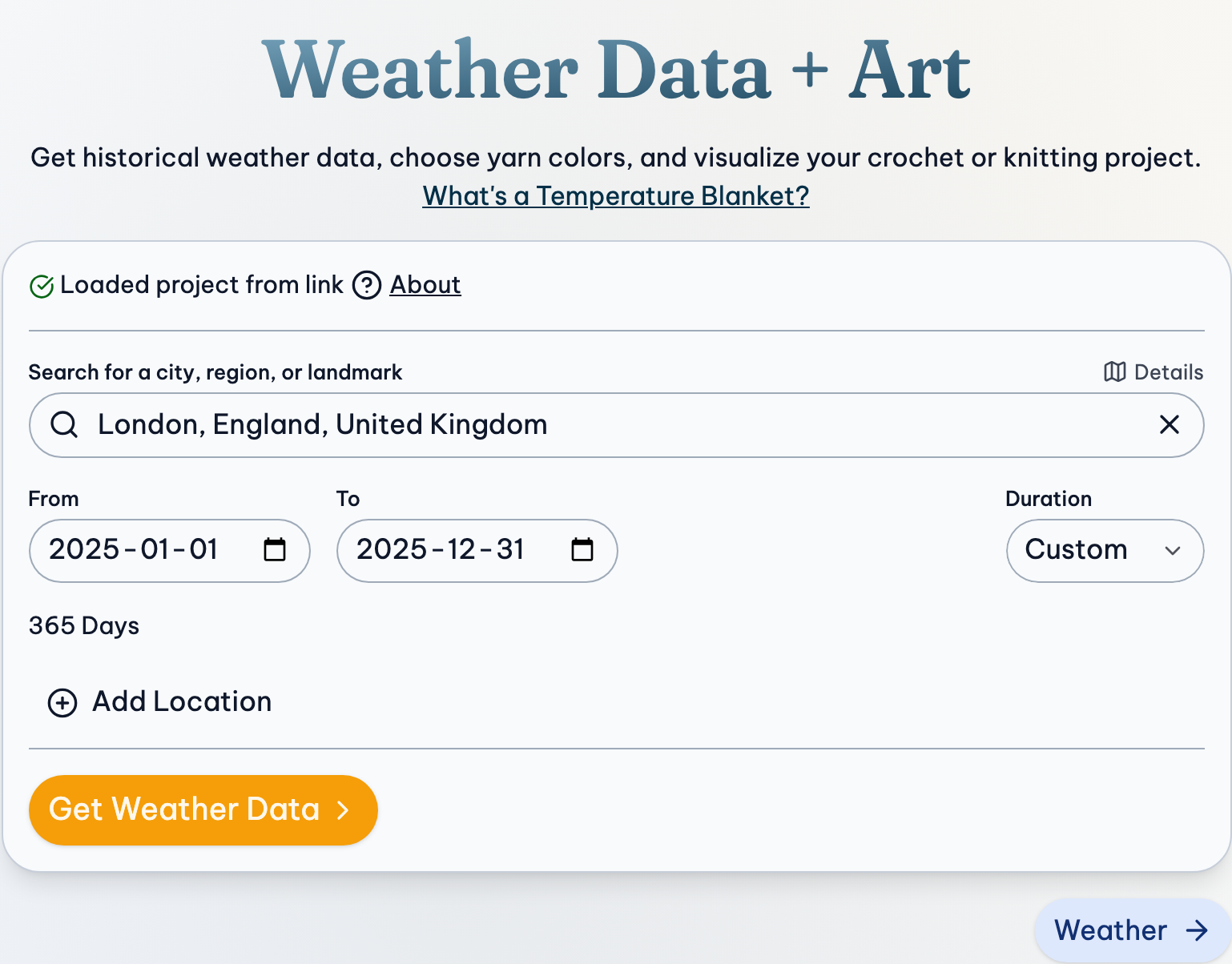
2. Get the Weather
- Press Search. It takes a few seconds.
- Look it over: the Summary has your hottest and coldest days, the Chart shows the whole year, and the Table lists every day.
- Prefer °F and inches? Press Units above the weather.
Weekly instead of daily rows? Choose Grouping, then Weekly. See Weather.
3. Choose Your Colors
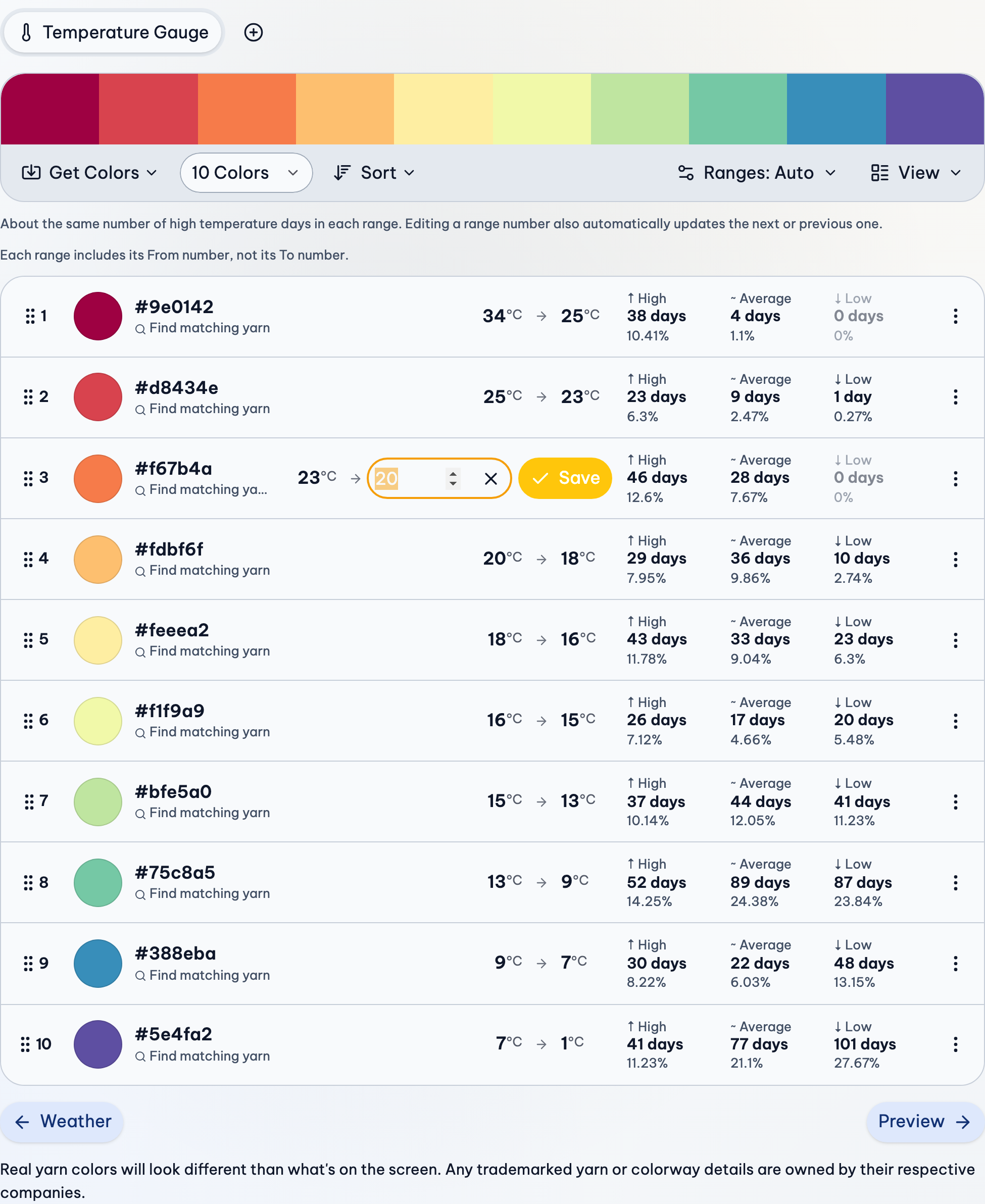
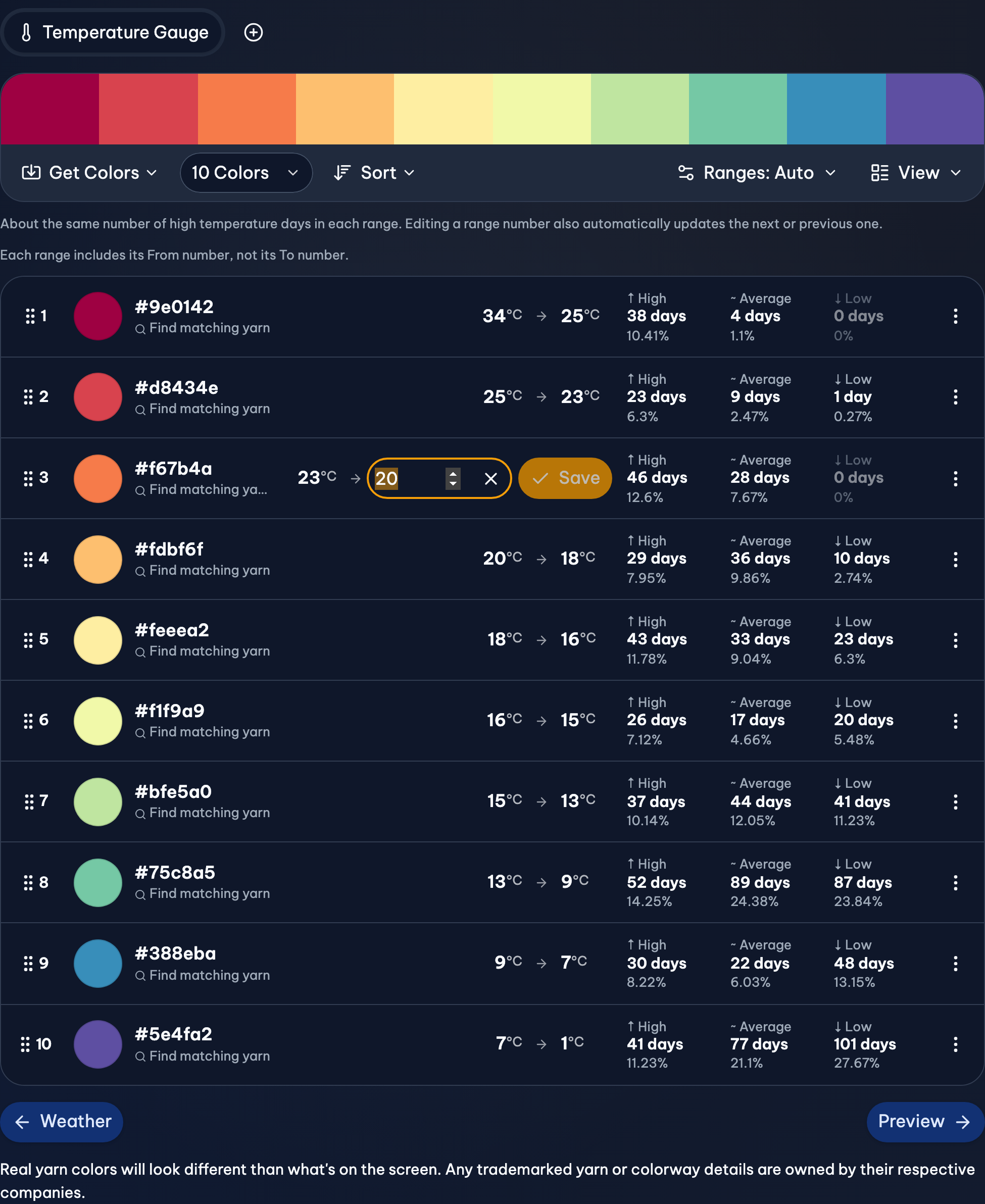
Below the weather is the Temperature Gauge, your blanket's key: a list of colors, each standing for a range of temperatures. It starts with colors to try; make them yours:
- Choose how many colors you want in the menu below the gauge (like 12 Colors). More colors means smaller ranges, and a more detailed blanket.
- Press Get Colors, then Choose Colorways to pick real yarn, or Preset Gradients, From an Image and more.
- To change one color, press its swatch.
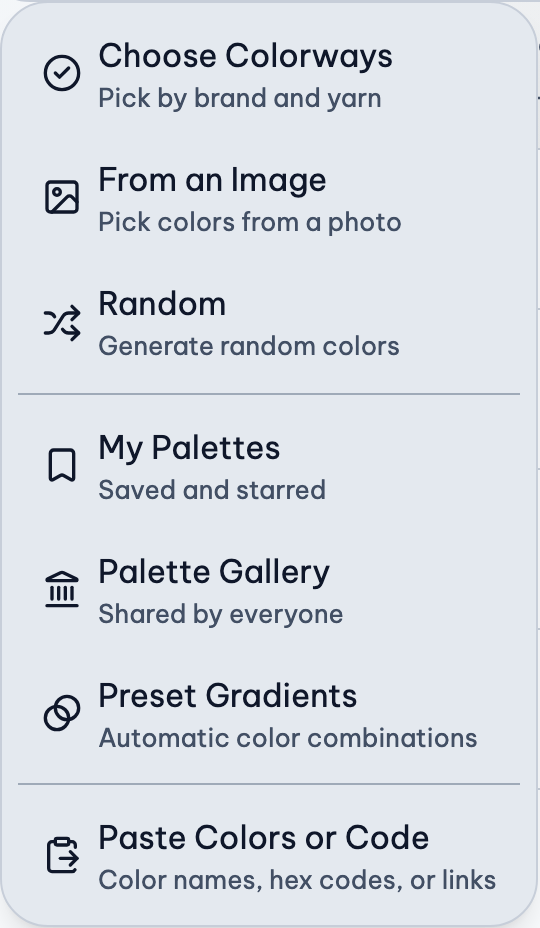
4. Set the Ranges
Each color's range is beside it, like 30 → 25. They're made from your weather to start with, so every day has a color. To change them:
- One number: press it, type the new one, and press Save. The next range follows along.
- All of them: press Ranges. Choose Equal days to use every color about as often, or Manual steps… for round steps like every 5°.
5. Preview Your Blanket
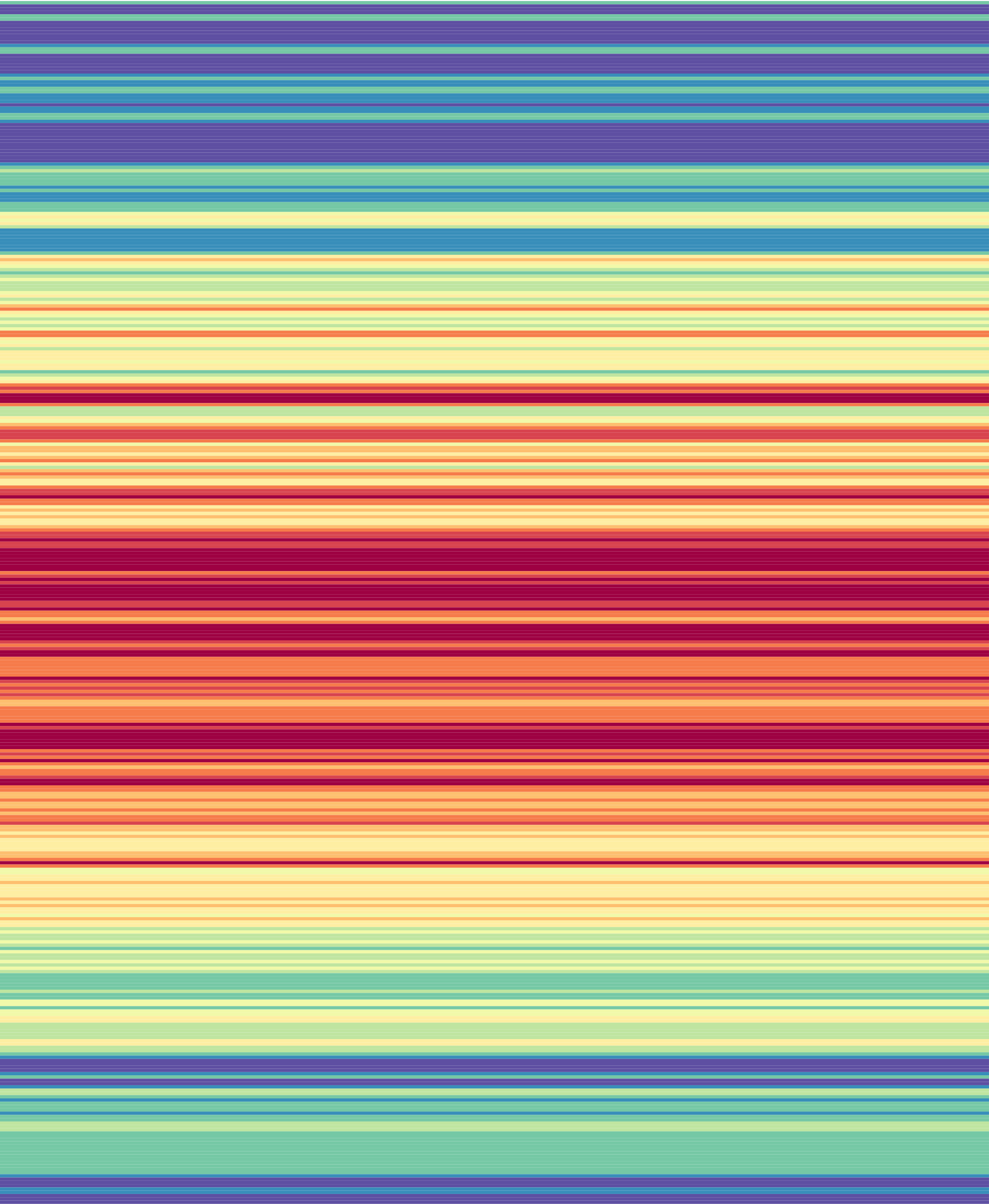
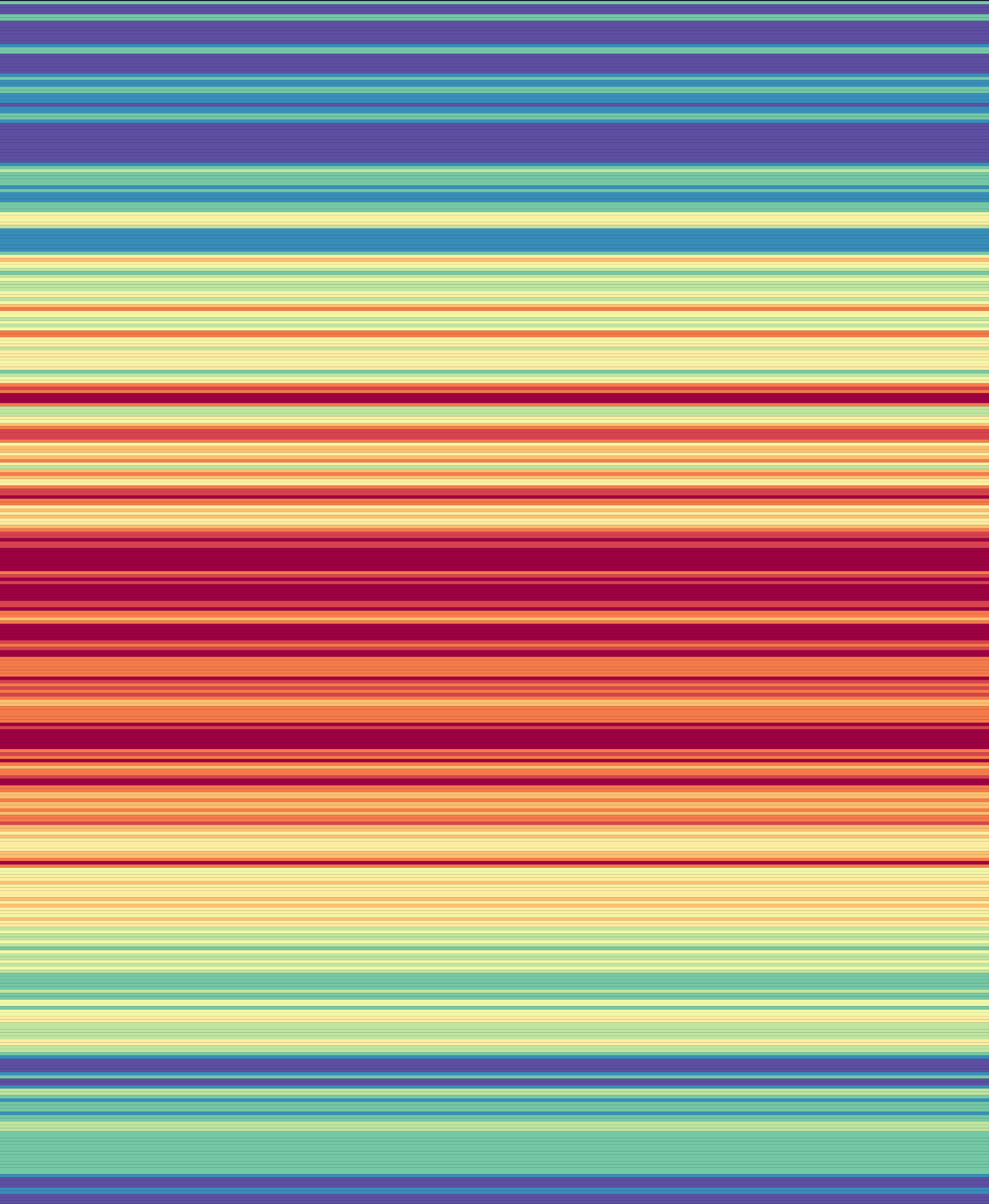
- Choose a Pattern above the preview. Rows is the classic: one row a day.
- Set it up in the settings below it, like the number of stitches in a row, or squares across.
- Touch or click a row to see its date and weather.
See every pattern in Preview.
6. Save Your Project
- Press Project at the top, then Save Project.
- To give it a name, press the pencil beside its name at the top.
From then on, your changes save by themselves. Your project is in My Library, in this browser, and in your account when you're signed in. Keeping your projects safe.
7. Download the Pattern
- Press Project, then Download, then PDF.
- Choose what's in it, beside a preview of its pages, then press Download.
The PDF has your colors and ranges, and every day's weather in its color. Printing the pattern and keeping your place.
If Something Goes Wrong
My place isn't in the list
Choose a town nearby. The weather is for an area around a place anyway.
Search can't be pressed
Choose your place from the list (typing it isn't enough), and check for a message under the dates. See Location & Dates.
The weather doesn't come, or looks wrong
When the weather doesn't match your thermometer, and weather messages.
Some colors are hardly used
Your weather spends more time in some ranges than others. Choose Ranges, then Equal days.
More Detail
- Location & Dates: Choosing places and dates, and what to do when one is not found.
- Weather: Where the weather comes from, and how to view, group, edit and import it.
- Gauges & Ranges: Gauges, their ranges, and every option in the Ranges menu, explained.
- Colors & Yarn: Getting colors, choosing yarn colorways, and sorting, pasting and exporting them.
- Preview: Preview patterns, their settings, your progress, and seasons.
- Download: The PDF, the weather spreadsheet (CSV), and the preview image.